

Porter Domains
Porter generates placeholder domains for all Web services. These placeholder domains follow the format of*.onporter.run. While these domains can be used in production, we highly recommend attaching a custom domain to your production web services.
Custom Domains
Setting up a custom domain involves two steps: setting up a DNS record to point to that domain, and then configuring your Web service to listen on that custom domain:DNS Setup
You must first find the DNS name assigned to the load balancer of your cluster. This can be found under the Networking tab of your Web Service: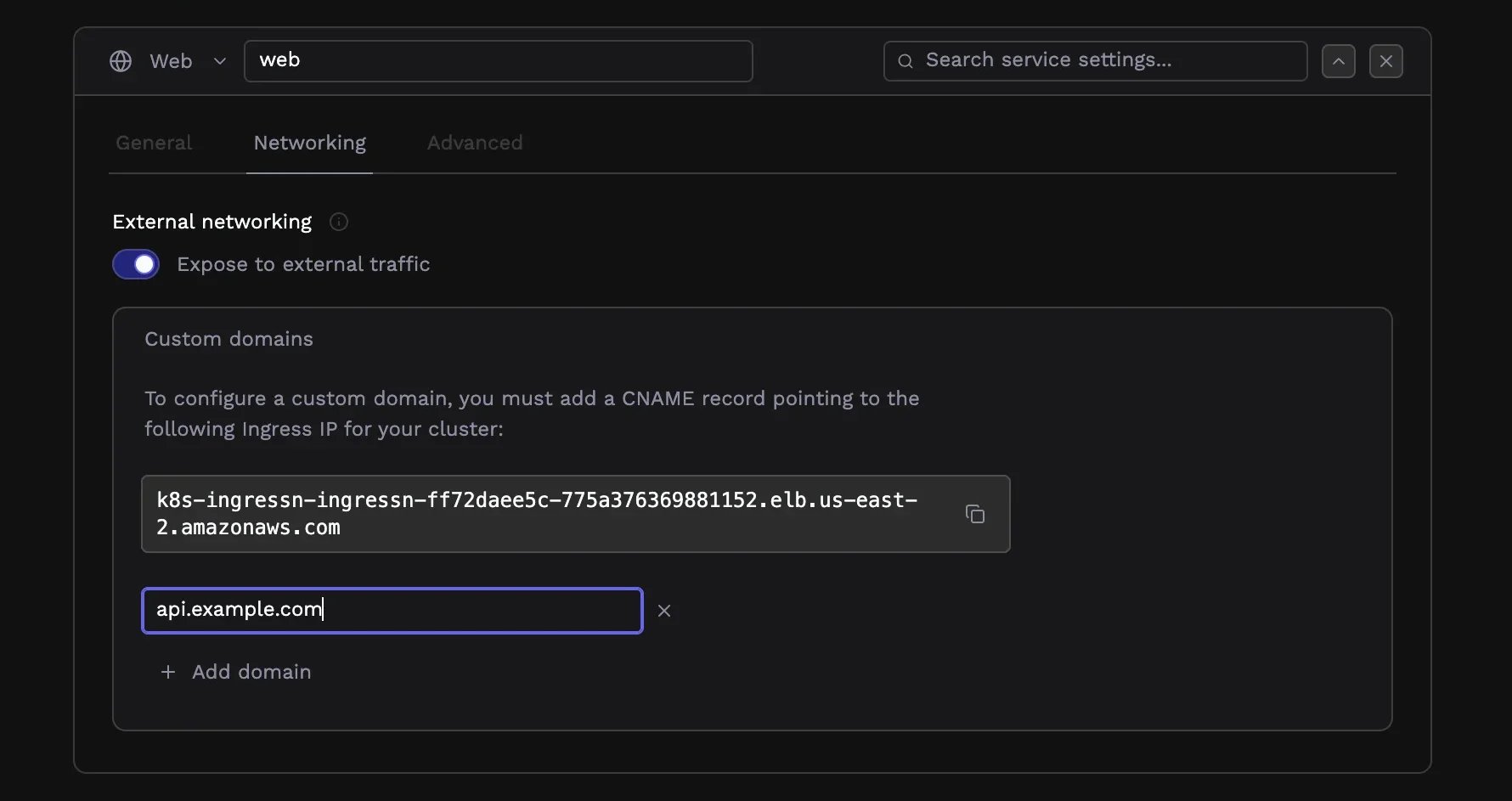
Google Cloud and Azure
On Google Cloud and Azure, the load balancer that sits in front of your infrastructure has a static IP address. Therefore, you have to create anA record in your DNS provider that points to that static IP address.
The name of the record should be the subdomain you want to use (e.g. app.mydomain.com),
and the value should be the IP address of the load balancer that you copied above.
Amazon Web Services
For clusters deployed on AWS, you need to create aCNAME record that points at the DNS name for your load balancer.
Please follow instructions below, based on the type of domain you are creating:
- Subdomain -> domains of the format
*.porter.runsuch ascloud.porter.run,myapp.porter.run - Apex domain -> top level domains, of the format
porter.run
- Subdomain
- Apex Domain
Create a 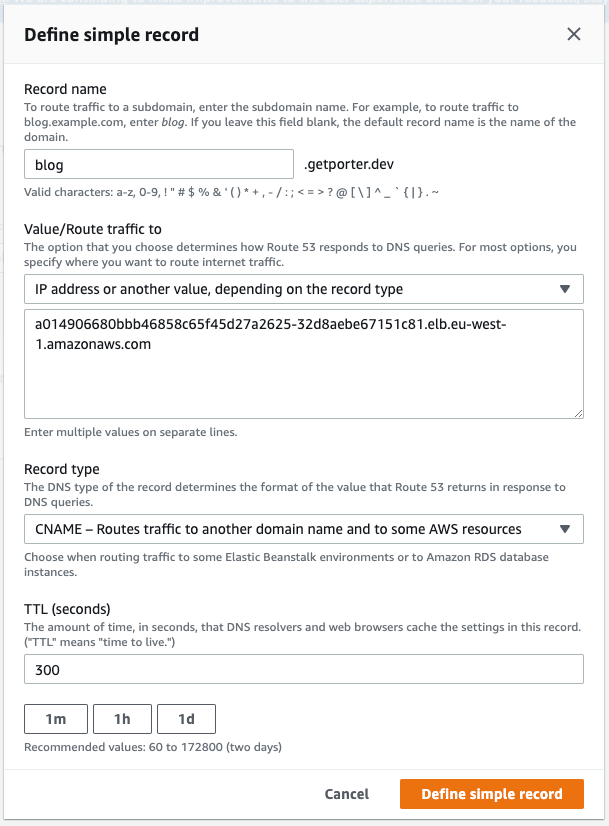
CNAME record on your DNS provider for your desired subdomain, which points to the load balancer URL you have copied above. Make sure you exclude the protocol http:// and any trailing / from the URL string. For example, on Route 53, this looks like the following:After you complete the previous steps, it might take up to 30 minutes for DNS records to fully propagate. Please wait before deploying your applications until the DNS propagation is complete. You can check this using tools like dnschecker.org or running
nslookup <your-domain>.Delegating ACME challenges with a CNAME
Porter uses the ACME DNS-01 challenge to prove domain ownership when issuing certificates. By default, the cert-manager solver writes aTXT record at _acme-challenge.<your-domain> in the same DNS zone as your domain.
If you cannot — or do not want to — grant Porter write access to your production DNS zone, you can delegate just the ACME challenge to a lower-privilege zone using a CNAME record. Porter’s DNS-01 solvers follow CNAMEs on _acme-challenge records, so the challenge is satisfied in the delegated zone without exposing the rest of your DNS.
To delegate the challenge:
- Create a zone (or reuse an existing one) that Porter has permission to write
TXTrecords into — for example,acme.example.net. - In your production DNS zone, create a
CNAMErecord from_acme-challenge.<your-domain>to a record name in the delegated zone.
app.example.com while keeping write access scoped to acme.example.net:
DNS records
TXT record to app.example.com.acme.example.net in the delegated zone. Without such a CNAME the solver behaves identically to the default flow, so this change is safe to leave in place even if you’re not using delegation.